> For the complete documentation index, see [llms.txt](https://docs.antares.id/llms.txt). Markdown versions of documentation pages are available by appending `.md` to page URLs; this page is available as [Markdown](https://docs.antares.id/en/subscription-and-payment/antares-coins/antares-coins-top-up-payment-procedures/payment-using-credit-cards-cc.md).
# Payment Using Credit Cards (CC)
### How to Pay Using a Credit Card
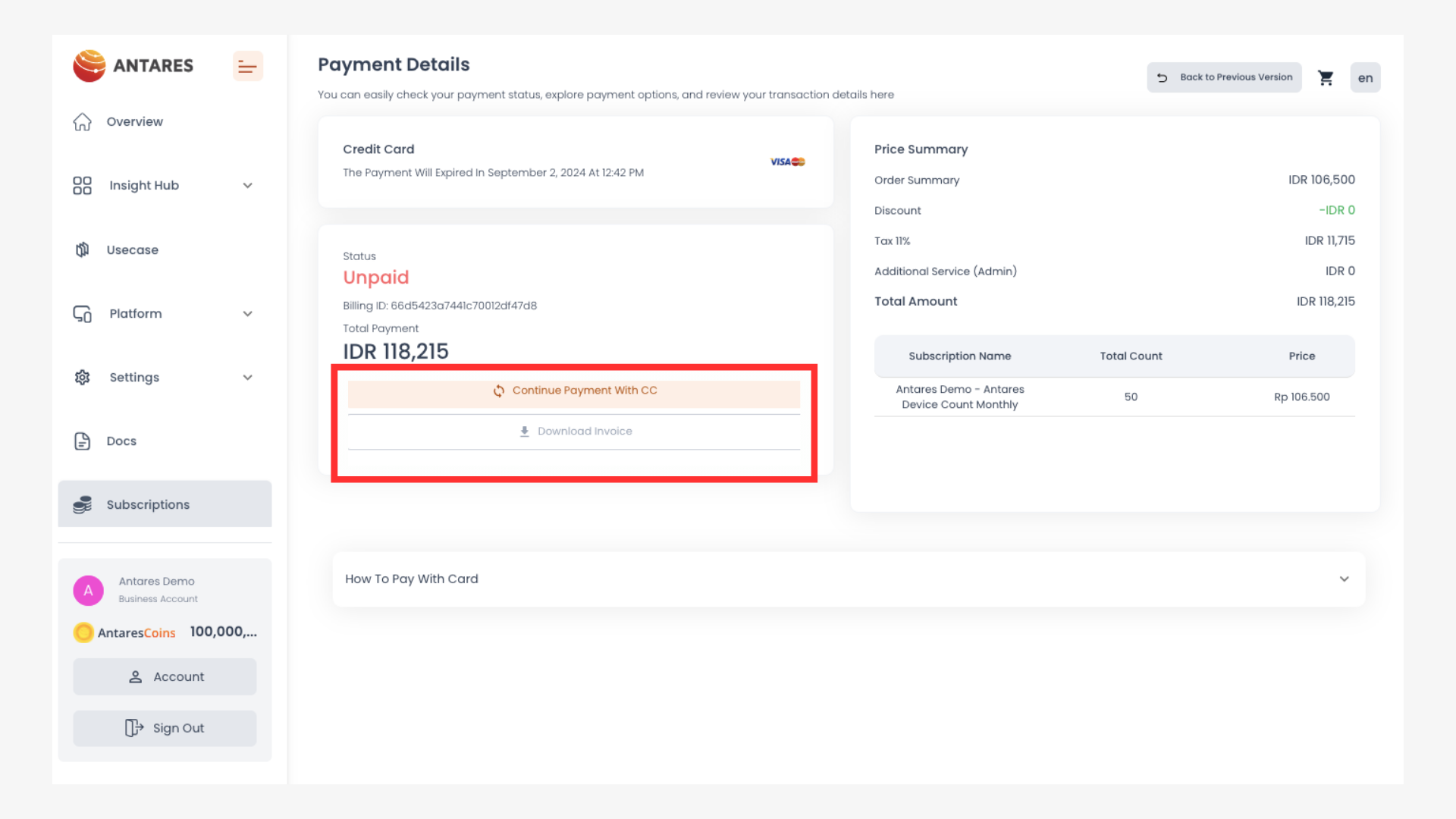
1. After selecting the credit card payment method, continue the payment by clicking **"Continue Payment With CC"**.
2. You will be redirected to the next page. Enter Card Number, Full Name, Card Expiry Date, and cardholder's CVC
3. Click "Pay Now" after filling in the information
4. Enter the Authorisation Code (OTP) sent via the registered mobile number, then click OK.
5. Transaction completed.
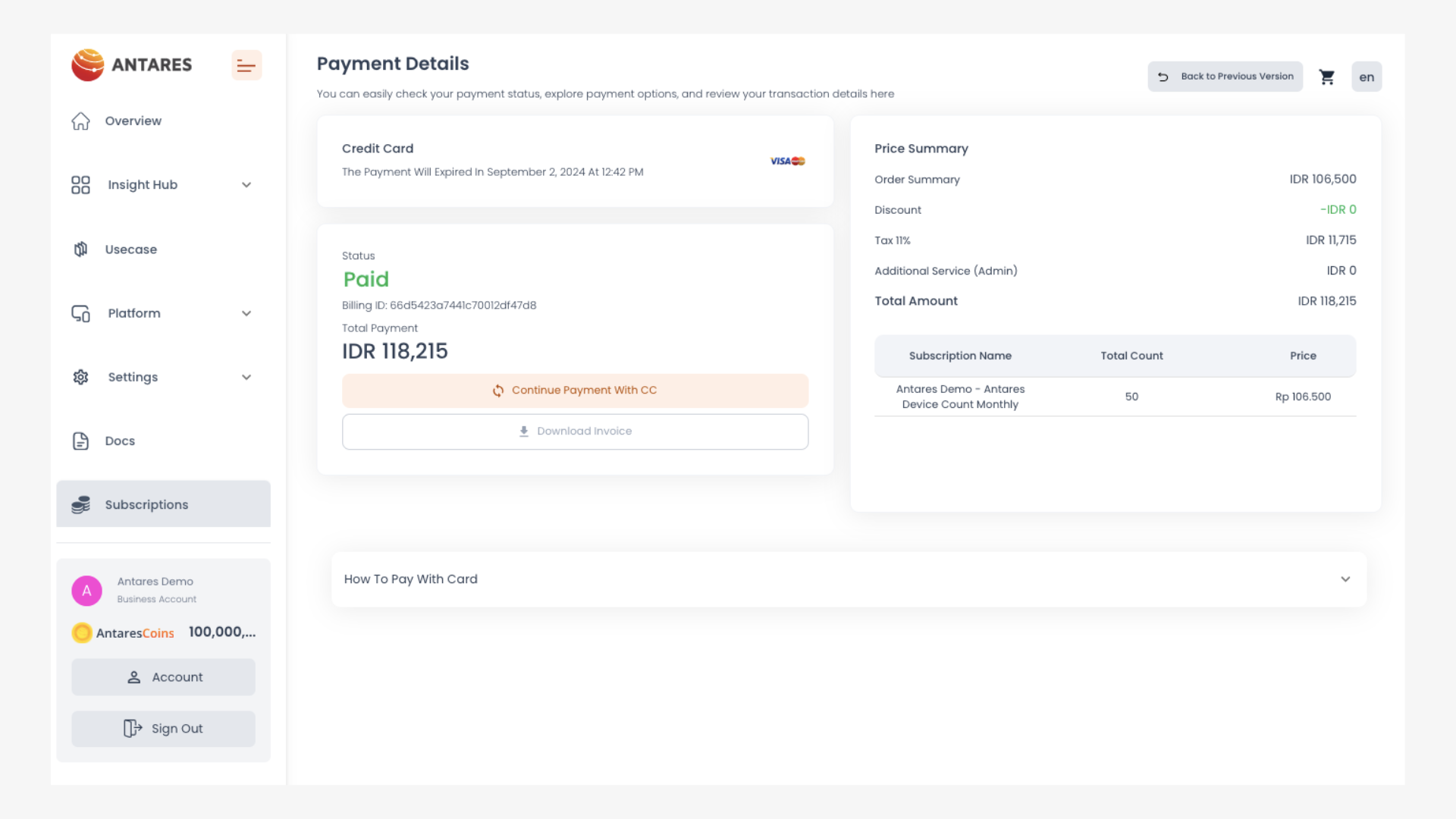
You will get a " Awaiting Payment" notification on the email registered to your Antares account. When the transaction process is complete, the display on the Antares page will change as shown below:
You will receive an invoice and a "Payment Successful" notification in your email.