# Procedure for Changing Connectivity Subscription

If your service is no longer active and you need to change your service to active, you can take the steps to change your service. To change the package can be done on each device or on many devices that are in one application.&#x20;

There are 2 (two) ways to replace Platform Services, which are :&#x20;

**Switching Subscription on a Device**

1. Log in to your Antares account and go to the "Applications" page.

On the Applications page, select the application for which you want to change the subscription

<figure><img src="https://3873791589-files.gitbook.io/~/files/v0/b/gitbook-x-prod.appspot.com/o/spaces%2F7cujmJ5QHdJaAjH815aZ%2Fuploads%2F43EdTyspBEE0IIbXoPdj%2Fimage.png?alt=media&#x26;token=266be9aa-6461-451a-8157-2ec89c9616e1" alt=""><figcaption></figcaption></figure>

2. Click the device you want to change the subscription to

Click the "Subscription" button at the top right of the device page.&#x20;

<figure><img src="https://3873791589-files.gitbook.io/~/files/v0/b/gitbook-x-prod.appspot.com/o/spaces%2F7cujmJ5QHdJaAjH815aZ%2Fuploads%2FSfjoorUbQrHnpfFoyVms%2Fimage.png?alt=media&#x26;token=fc83dcdb-1067-4d27-9bf5-eeacf76ce9f0" alt=""><figcaption></figcaption></figure>

Then a pop up will appear as shown below:

<figure><img src="https://3873791589-files.gitbook.io/~/files/v0/b/gitbook-x-prod.appspot.com/o/spaces%2F7cujmJ5QHdJaAjH815aZ%2Fuploads%2FRh0GfP0rqsabybyTTJFp%2Fimage.png?alt=media&#x26;token=1ea8e0a7-4077-4e05-bf17-f4f637dcdc16" alt=""><figcaption></figcaption></figure>

If you subscribe to the LoRa service, then a pop up will appear as follows

<figure><img src="https://3873791589-files.gitbook.io/~/files/v0/b/gitbook-x-prod.appspot.com/o/spaces%2F7cujmJ5QHdJaAjH815aZ%2Fuploads%2FdWLBlCxBj3O96iLfpfsL%2Fimage.png?alt=media&#x26;token=57ea6f84-c0da-43e3-8fca-63d4103c6570" alt=""><figcaption></figcaption></figure>

3. Select the active subscription that your device will use in the field provided

<figure><img src="https://3873791589-files.gitbook.io/~/files/v0/b/gitbook-x-prod.appspot.com/o/spaces%2F7cujmJ5QHdJaAjH815aZ%2Fuploads%2Fbk0n0EFs64OvHSwV0fEw%2Fimage.png?alt=media&#x26;token=b8623eb3-fbb3-40f6-a2d5-29271bf10812" alt=""><figcaption></figcaption></figure>

<figure><img src="https://3873791589-files.gitbook.io/~/files/v0/b/gitbook-x-prod.appspot.com/o/spaces%2F7cujmJ5QHdJaAjH815aZ%2Fuploads%2FK6t7DxPhy1zjiBLo4wlH%2Fimage.png?alt=media&#x26;token=d1b84fb7-9baa-4742-be6d-e962f511a089" alt=""><figcaption></figcaption></figure>

4. After selecting the subscription, click "Apply"

Furthermore, the Platform Package will change automatically marked with the status "success update subscription device".

<figure><img src="https://3873791589-files.gitbook.io/~/files/v0/b/gitbook-x-prod.appspot.com/o/spaces%2F7cujmJ5QHdJaAjH815aZ%2Fuploads%2FS9Wf2FYwJk9GmXZUFZn8%2Fimage.png?alt=media&#x26;token=fdbd4889-ab20-468c-96c8-70d2fb17c0e5" alt=""><figcaption></figcaption></figure>

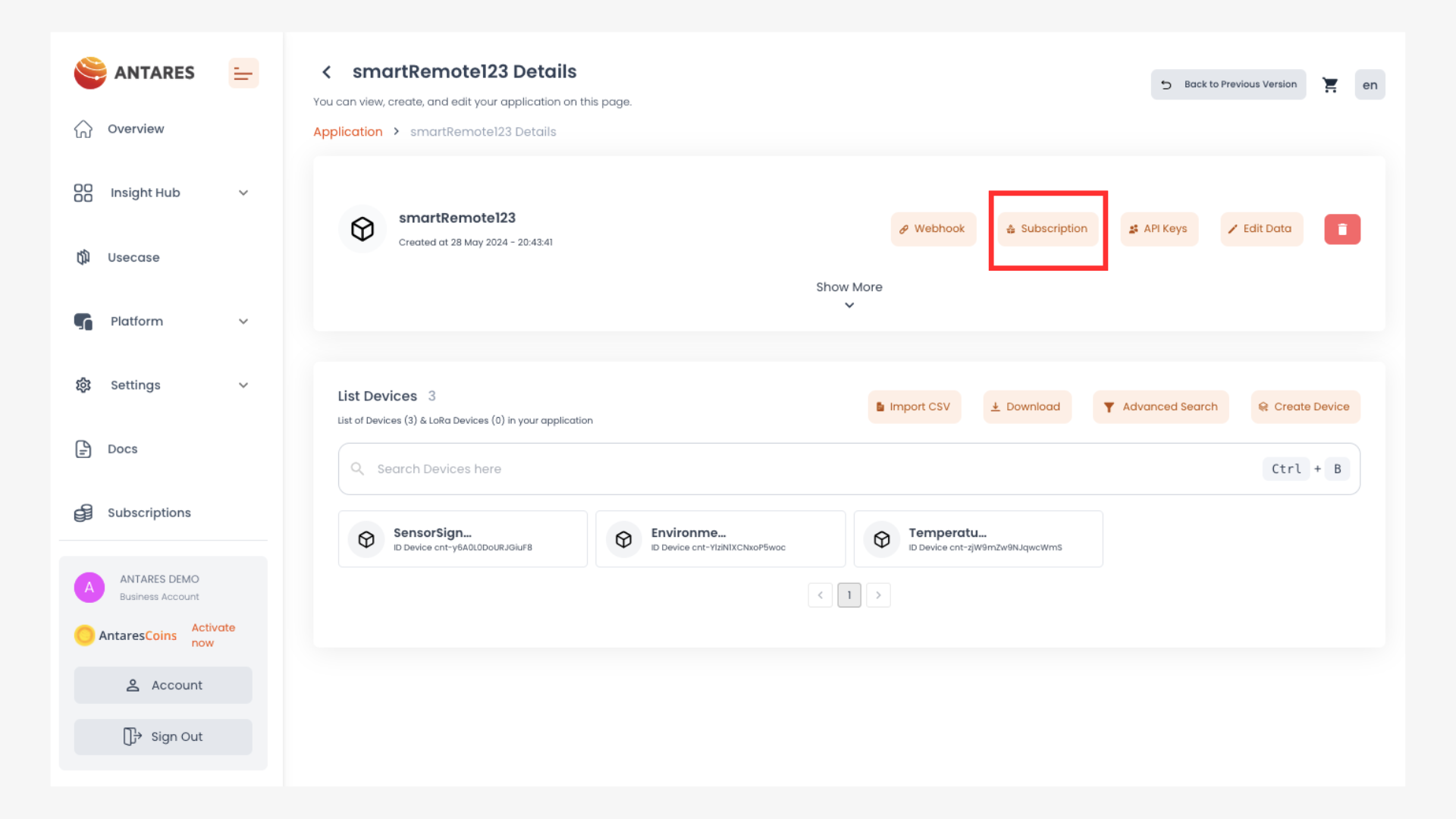
**Switching Subscription on Multiple Devices in One App**

1. Log in to your Antares account and go to the **"Applications"** page.

Click the **"Subscription"** button

<figure><img src="https://3873791589-files.gitbook.io/~/files/v0/b/gitbook-x-prod.appspot.com/o/spaces%2F7cujmJ5QHdJaAjH815aZ%2Fuploads%2FROyYTAZFQVlOxiJcy7hq%2Fimage.png?alt=media&#x26;token=a0f06d86-5d90-4824-8ca6-75ed481b5d28" alt=""><figcaption></figcaption></figure>

The display will change to the following image:

<figure><img src="https://3873791589-files.gitbook.io/~/files/v0/b/gitbook-x-prod.appspot.com/o/spaces%2F7cujmJ5QHdJaAjH815aZ%2Fuploads%2Ftv2tyVVDvHMwXVOgQWQi%2Fimage.png?alt=media&#x26;token=a4835c2b-4ba2-4c3f-ab49-4d293041fd41" alt=""><figcaption></figcaption></figure>

2. Click the **"Change Device Subscription"** button

<figure><img src="https://3873791589-files.gitbook.io/~/files/v0/b/gitbook-x-prod.appspot.com/o/spaces%2F7cujmJ5QHdJaAjH815aZ%2Fuploads%2FaZExv2qxFWdTIZGwqH94%2Fimage.png?alt=media&#x26;token=e2ccb594-a68f-485c-801f-9515810b6d61" alt=""><figcaption></figcaption></figure>

If the user does not have a service that does not meet the number of devices in the application, then no service appears.

Select the devices to be replaced via the checklist column provided on the right. To select all devices directly, you can fill in the **select all** checklist field.

<figure><img src="https://3873791589-files.gitbook.io/~/files/v0/b/gitbook-x-prod.appspot.com/o/spaces%2F7cujmJ5QHdJaAjH815aZ%2Fuploads%2FaGynmvOVEG3JveugJm30%2Fimage.png?alt=media&#x26;token=5662708c-6455-4b69-ac76-d49ec8249f93" alt=""><figcaption></figcaption></figure>

3. Please select your preferred service in the **"Platform and Connectivity Subscription"** section

<figure><img src="https://3873791589-files.gitbook.io/~/files/v0/b/gitbook-x-prod.appspot.com/o/spaces%2F7cujmJ5QHdJaAjH815aZ%2Fuploads%2FLedYcpC8Xxc0JC30Jdll%2Fimage.png?alt=media&#x26;token=4617aefc-30ee-4f98-847a-2f7ca3c99f6e" alt=""><figcaption></figcaption></figure>

<figure><img src="https://3873791589-files.gitbook.io/~/files/v0/b/gitbook-x-prod.appspot.com/o/spaces%2F7cujmJ5QHdJaAjH815aZ%2Fuploads%2F5KkQVej7B5v7TufdlALK%2Fimage.png?alt=media&#x26;token=47b06798-57b7-43c5-a2d0-a5720841fe6e" alt=""><figcaption></figcaption></figure>

4. Click **"Confirm"**

Your subscription will be automatically replaced

<figure><img src="https://3873791589-files.gitbook.io/~/files/v0/b/gitbook-x-prod.appspot.com/o/spaces%2F7cujmJ5QHdJaAjH815aZ%2Fuploads%2FBp7ogU3pLHovA6chszw6%2Fimage.png?alt=media&#x26;token=b64cf9c2-b795-4f3a-98f9-37510de136e5" alt=""><figcaption></figcaption></figure>